
Purchase Return (Serial Item)
Home / Documentation /
⚙️ Getting Started
🏪 Outlet
⚙️ Settings
🏧 Working With Counter
💰 Working Denomination
🛒 Make a Test Sale
👥 Employee Management
📅 Attendance
📋 Working with Tax
🏦 Account
📦 Working (General Item)
📦 Working (Variation Item)
📱 Working (IMEI Item)
🏷️ Working (Serial Item)
💊 Working (Medicine Item)
💳 Working (Installment Item)
🔧 Working (Service Item)
📊 Stock (General Item)
📊 Stock (Variation Item)
📊 Stock (IMEI Item)
📊 Stock (Serial Item)
📊 Stock (Medicine Item)
📊 Stock (Installment Item)
📥 Purchase (General Item)
📥 Purchase (Variation Item)
📥 Purchase (IMEI Item)
📥 Purchase (Serial Item)
📥 Purchase (Medicine Item)
📥 Purchase (Installment Item)
🏷️ Barcode & Label
🖨️ Working with Printer
🛒 Sale (General Item)
🛒 Sale (Variation Item)
🛒 Sale (IMEI Item)
🛒 Sale (Serial Item)
🛒 Sale (Medicine Item)
🛒 Sale (Installment Item)
🔧 Sale (Service Item)
🌐 Multivendor e-Commerce
📧 Working with Email
💬 Working with SMS
💳 Payment Gateway Setting
💬 Working with WhatsApp
👤 Working with Customer
🏢 Working with Supplier
📤 Purchase Return (General Item)
📤 Purchase Return (Variation Item)
📤 Purchase Return (IMEI Item)
📤 Purchase Return (Serial Item)
📤 Purchase Return (Medicine Item)
📤 Purchase Return (Installment Item)
🔄 Sale Return (General Item)
🔄 Sale Return (Variation Item)
🔄 Sale Return (IMEI Item)
🔄 Sale Return (Serial Item)
🔄 Sale Return (Medicine Item)
🔄 Sale Return (Installment Item)
📊 Dashboard
🎁 Promotion & Coupon
🏆 Loyalty
💳 Installment Sale
🔧 Warranty/Servicing
📈 Income
📉 Expense
💰 Salary/Payroll
📋 Quotation
🔄 Transfer (General Item)
🔄 Transfer (Variation Item)
🔄 Transfer (IMEI Item)
🔄 Transfer (Serial Item)
🔄 Transfer (Medicine Item)
🔄 Transfer (Installment Item)
❌ Damage (General Item)
❌ Damage (Variation Item)
❌ Damage (IMEI Item)
❌ Damage (Serial Item)
❌ Damage (Medicine Item)
❌ Damage (Installment Item)
🏢 Fixed Asset
📊 Report
🔄 Update Software
❌ Uninstall License
A purchase return, often referred to as a return of products, is a transaction where a buyer returns previously purchased items to the seller. This could be due to various reasons such as dissatisfaction with the product, receiving damaged or defective products, or overstock. The seller typically issues a refund or credit to the buyer for the returned items, and the transaction may involve adjustments to stock and accounting records to reflect the returned products.
Add Purchase Return
To create a purchase return for a serial product, go to the Purchase Return section.
From the left sidebar, expand the Purchase Return menu.
Click on the Add Purchase Return option.
This will open the form where you can record serial product return details.
-
Expand the Purchase Return menu from the sidebar
-
Click on Add Purchase Return option
-
Access the return form for serial product
-
Proceed with entering the return details

First select the supplier.
Then select Status, Here stocks and accounts work differently based on status.
If you select status “Taken by supplier product not returned” the product will be removed from the stock and there will be no change in the account.
If you select status “Taken by supplier money returned” the product will be removed from the stock and Money will be added to the account.
If you select status “Taken by supplier product returned” There will be no change in stock and account.

While making the purchase return, when the “Status” is taken by supplier money return, you will get an “Account” field, from the account field select an account through which the “Purchase Return” money is being take

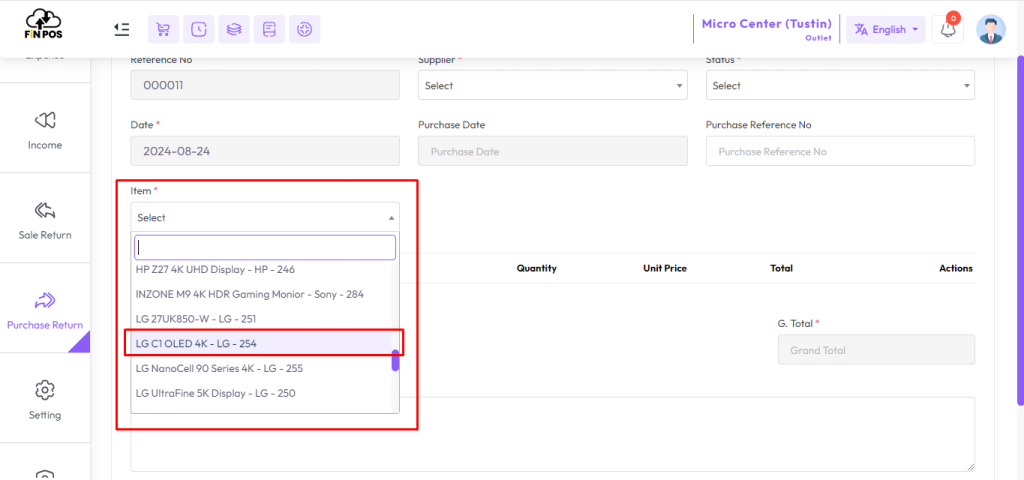
Next, you need to select the product for the purchase return.
Expand the Items field to see the list of products.
Choose a Serial Type Product from the list.
For example, here LGC10LED4K is selected as the serial product.
-
Expand the Items field
-
View the list of available products
-
Select a Serial Type Product
-
Example: LGC10LED4K
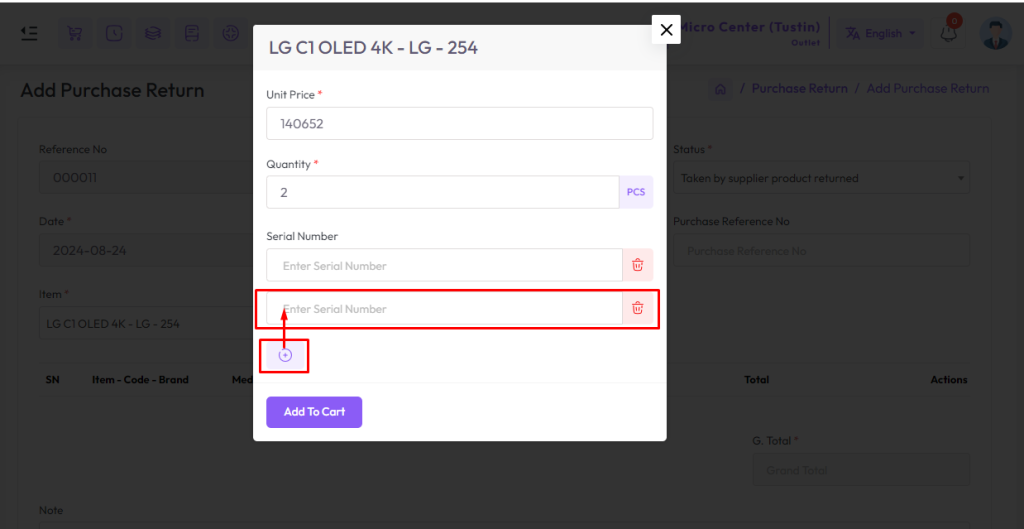
After selecting Serial product you will get a popup modal, Enter the purchase price in the Unit Price field.
Suppose you want to purchase return 2 pieces of Serial product whose price per piece is 140652 amount, for 2 pieces of Serial product just put 140652 amount only in the unit field not 280504 amount.
NB: You just put the single unit price of the product.
NB: The purchase return quantity must be entered in the sale unit.
Enter the quantity in the Quantity field for how many Serials you want to purchase return, below field will be generated according to quantity number. Enter the Serial number in the Serial field. Then click the Add to Cart button to add these items to the cart.

If you need to add more serial numbers, you can increase the serial field.
Click on the Plus (+) button next to the serial input area.
This will generate a new field for entering another serial number.
It helps when returning multiple serial-based products.
-
Click the Plus (+) Button
-
Add a new Serial Field
-
Enter another serial number
-
Manage multiple serial products easily
After adding the serial products, they will appear in the cart section.
The cart will display all selected items with their serial numbers.
You can review the product details, quantity, and prices in the cart.
It will look similar to the snapshot shown below.
-
Serial products appear in the Cart Section
-
View selected items with serial numbers
-
Check product details, quantity, and price
-
Cart matches the shown snapshot
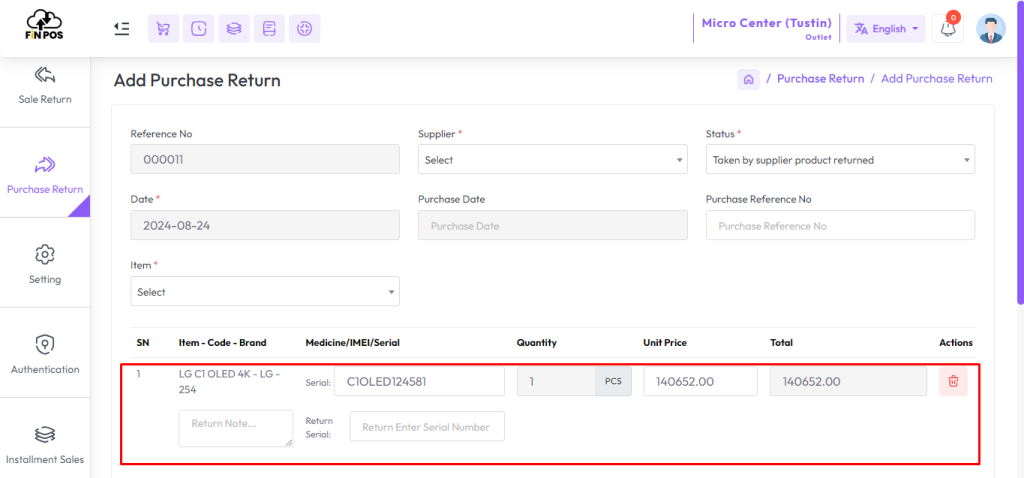
In the snapshot below you can see that there is another “Return Serial” field below the “Serial” field. This means getting another “Serial” instead of the one you are returning.
Note that this field is visible only when the “Status” is “Taken by supplier product returned” otherwise it is not visible.
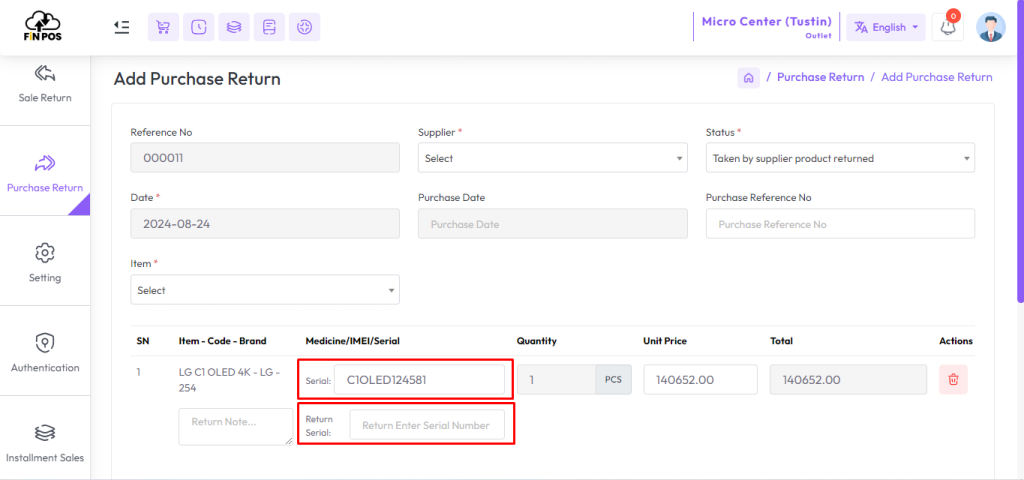
Finally, complete the purchase return form by filling all the required fields.
Carefully review the serial product details before saving.
Once verified, click on the Submit button.
This will save and finalize your serial product purchase return.
-
Fill in all Required Fields
-
Review the entered serial product details
-
Click on the Submit button
-
Save the serial product purchase return successfully